Order Center
Automatically validate or invalidate customer-submitted order numbers with the Order Center. The order center in GetReviews allows you to maintain a database of customer order numbers that is referenced against when customers submit order numbers. By maintaining a database of customer order numbers, you are ensuring that only customers with valid order numbers are entering your survey flow.
Enabling a Marketplace
The first thing you will need to do to be able to upload order numbers to a marketplace, is enable the marketplace you would like to upload order numbers to. This is done in the
Marketplace Library
.


Uploading Order Numbers
Now that we've enabled a marketplace, let's learn how to upload order numbers to this marketplace's database
From any page, click the "Orders" item in the left navigation

"Upload Orders" section
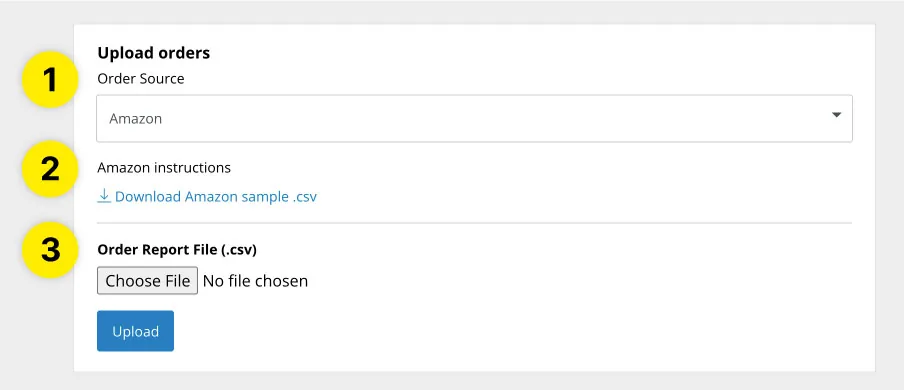
- Order Source : First, you will need to select which marketplace's database you would like to upload order numbers to. Each marketplace has different order number formats, so be sure to select the right marketplace for your upload.
- Marketplace Instructions : GetReviews provides a dummy .CSV file for you to download to ensure you are uploading marketplace data in the correct format
- Order Report File (.csv) : To upload your order number file, click "Choose File" and navigate to where the order number file is located on your computer and select it. Then click the "Upload" button.
Note: If you switched your marketplace validation method from "Manual Validation" to "Upload Orders," your account may have pending, unvalidated reviews that, if the order number exists in one of your order number uploads, will automatically validate. Be sure to double check that you are not approving any reviews that you would not like to validate by uploading a file containing one of these order numbers.
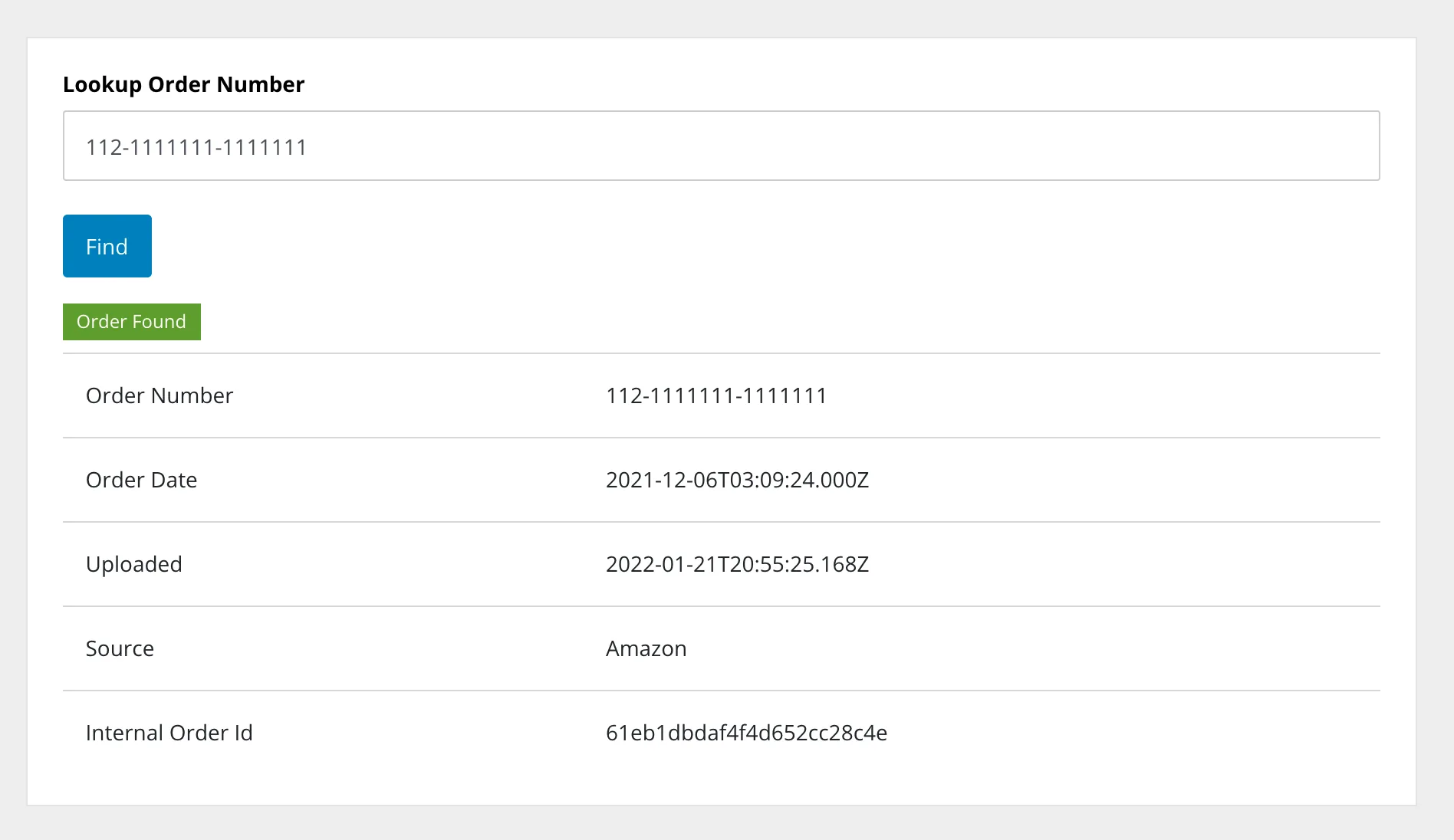
"Lookup Order Number" section
Beneath the order number upload section is the "Lookup Order Number" section. The lookup order number section allows you to search your order number database to see if you have uploaded an order number or not. If you have uploaded an order number, that order number's details will show.
"Recent Uploads" section
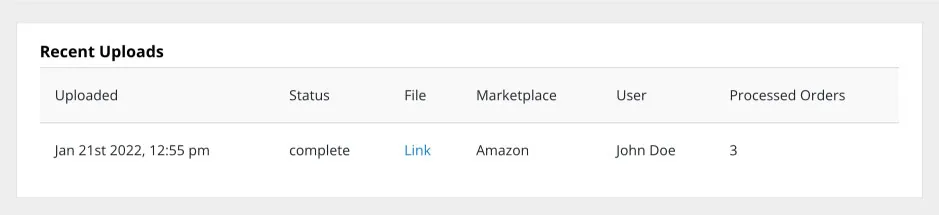
The "Recent " section displays a list of recent uploads, including a link to the file, the marketplace it was uploaded to, who uploaded it, and how many order numbers were processed.