ShipBob
Automatically fulfill product giveaways from your inventory in ShipBob with the ShipBob integration. Learn how to configure this below.
Configure the ShipBob integration
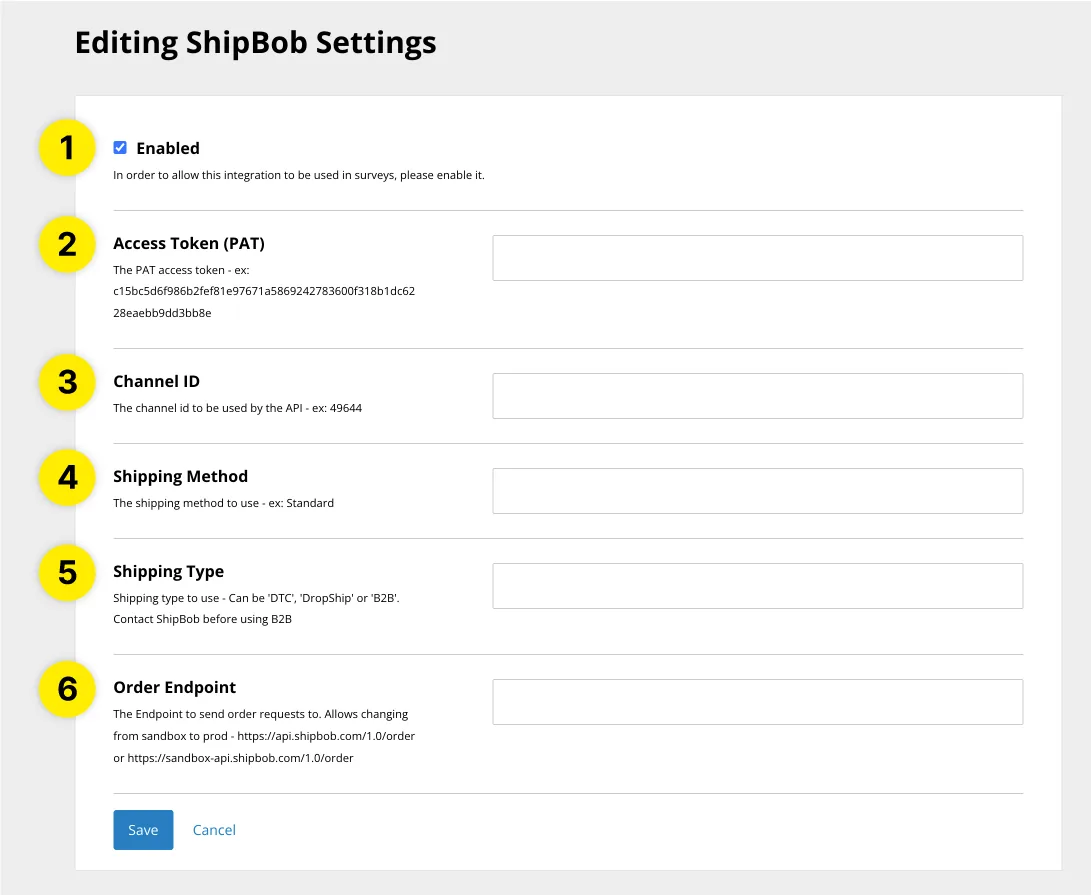
- Enabled : Tick this checkbox to enable the integration
- Access Token (PAT) : PAT tokens must be requested directly from ShipBob. You can request a PAT Token here
- Channel ID : Once your request for a PAT Token has been granted by ShipBob, please email GetReviews your PAT Token so that we may grab your Channel ID.
- Shipping Method : This is the shipping method you would like to use to send your customer's giveaway.
- Shipping Type: There are three shipping types in ShipBob - DTC, DropShip, or B2B. Select the shipping type that best represents your situation (contact ShipBob before using B2B.)
- Order Endpoint : There are two order endpoints. If you are testing this integration with ShipBob's sandbox environment, use https://sandbox-api.shipbob.com/1.0/order in this text box. Otherwise, if you are ready to go live, use https://api.shipbob.com/1.0/order in this text box.
- Click "Save"
Enable ShipBob Integration on Survey
- Visit the Surveys page
- Next to the survey you would like to export respondent data to ShipBob from, click “Edit”
- Scroll down to the "Integrations" section
- Enable ShipBob as an integration
- Click "Save"
Once all of the above steps are complete, when a customer completes your survey, Their shipping data along with the free gift they selected, will be sent to ShipBob for automated fulfillment.
Notes
- Your GetReviews Giveaway SKU value must match your ShipBob Product SKU value. If the SKU values do not match, the automation will fail and an order will not be created.
- All ShipBob orders created by GetReviews are tagged with the word "GetReviews"