Add User
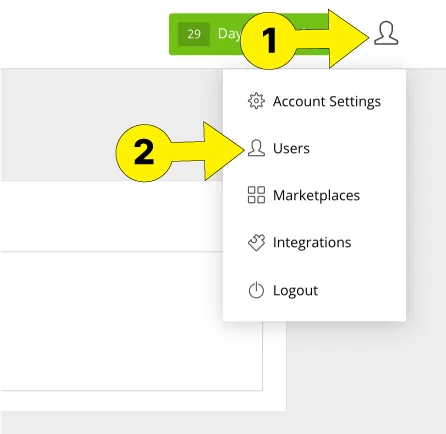
To add a user to your GetReviews account, click the "User" icon in the top right corner of the GetReviews dashboard, then click "Users"
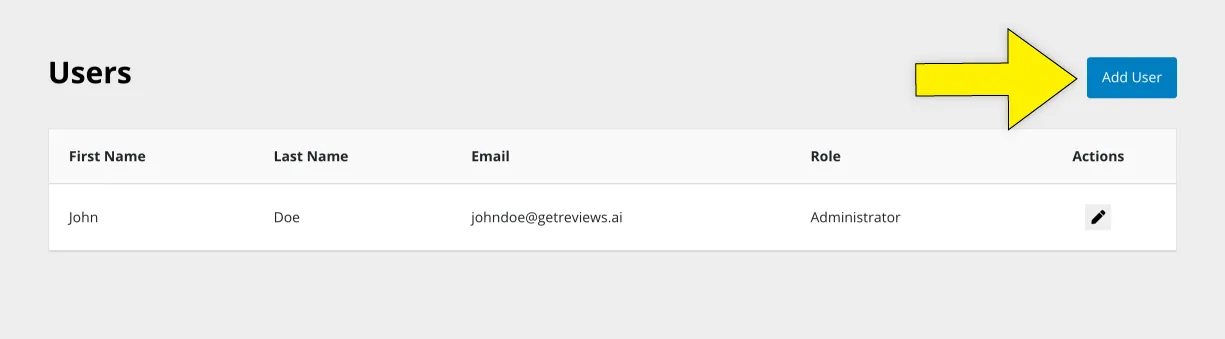
Once on the users page, click the blue "Add User" button in the top right corner
When you click the "Add Users" button, a modal will pop up that asks you to enter some information on the user to be added.
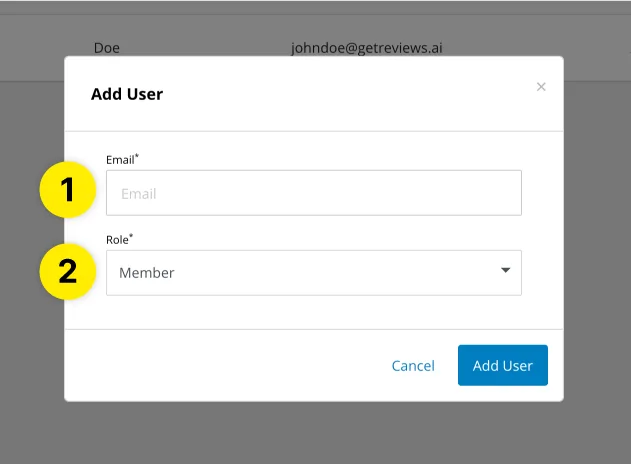
- Email : Enter the email address of the user you would like to add.
-
Role
: Enter the role of the user you are adding. There are two roles:
- Member
- Administrator
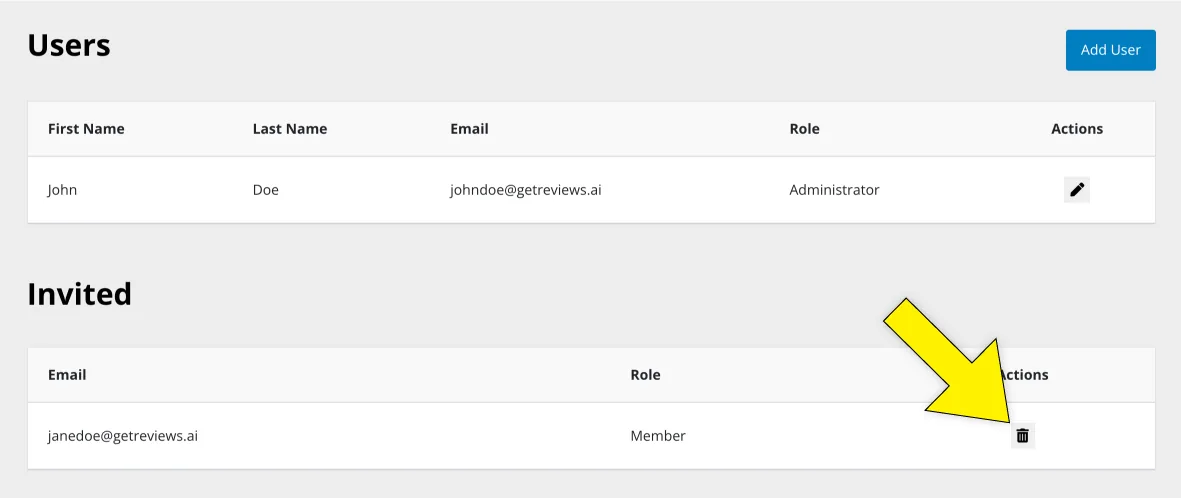
Once you click the "Add User" button, an email will be sent to the user with instructions on how to sign up. Until the user signs up, they will be shown as an "Invited" user on the user administration page. If you would like to revoke this user invite, you can click the trash can icon next to the user invite you would like to revoke.